
How to install or update WordPress Theme
1. Go to WP dashboard -> About US.
2. In your WordPress admin panel, go to Appearance -> Themes
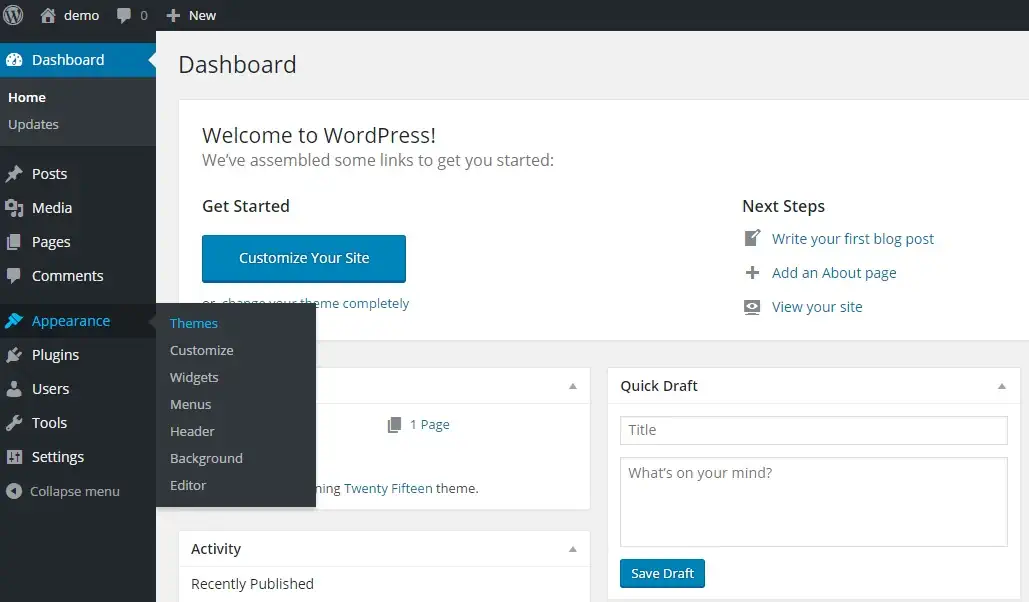
3. Click the Add New button.
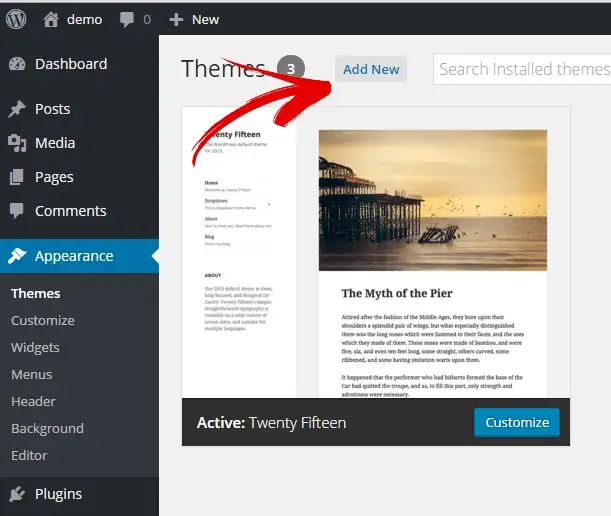
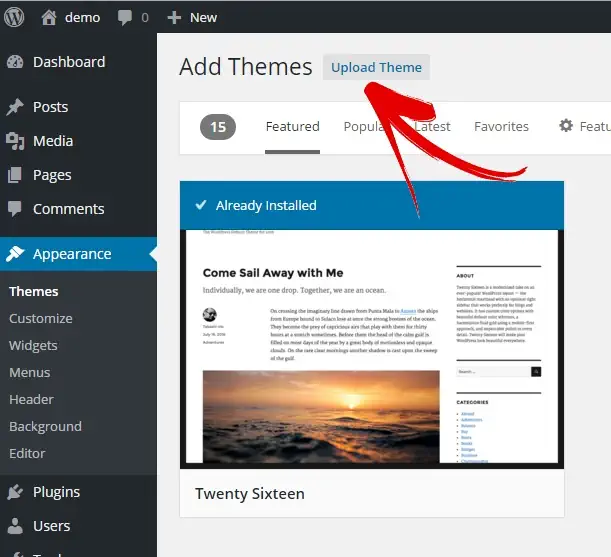
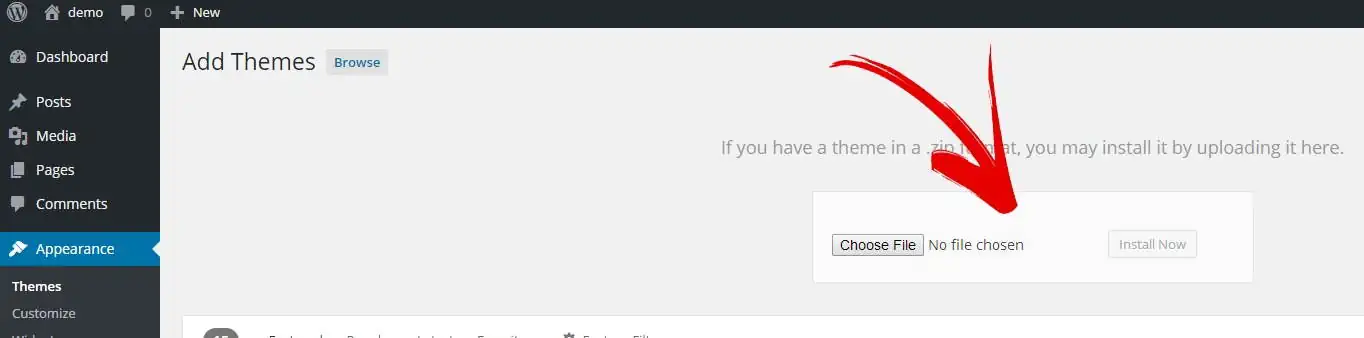
4. Click Upload and Choose File, then select the theme’s ZIP file.
5 Click Install Now.
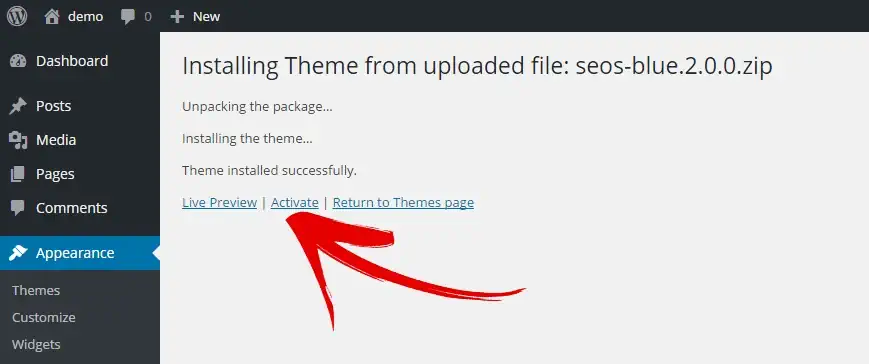
6. Click Activate to use your new theme right away.
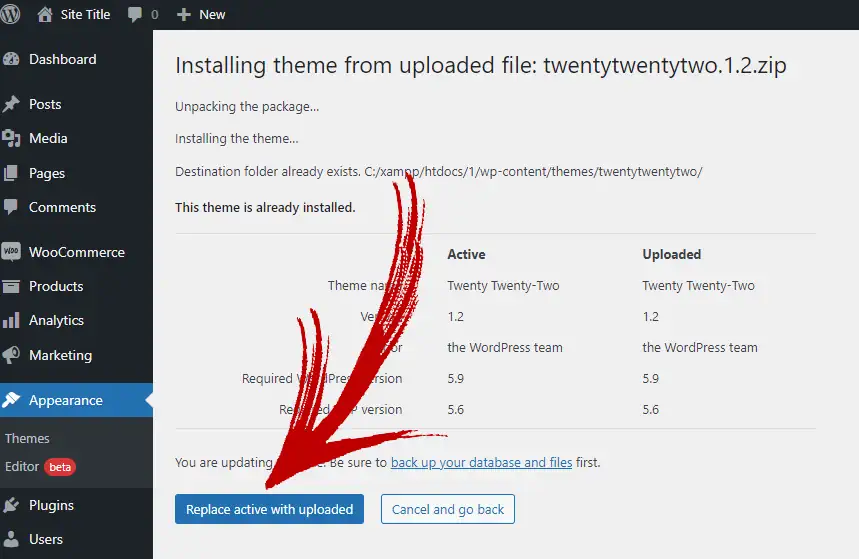
7. If the theme exists just replace the file and it will update.
HOW TO USE HOMEPAGE BOXES
Go to the WordPress Customize -> Homepage Theme Boxes. You can set a section title and three images with a description, link, and title that will appear on the homepage

HOW TO USE HOMEPAGE CUSTOM IMAGES

HOW TO USE FOOTER SLIDER

HOW TO USE CONTACTS

HOW TO USE ANIMATIONS

HOW TO USE GOOGLE FONTS

HOW TO USE SHORTCODE

HOW TO USE ENTRY META

HOW TO USE TESTIMONIALS

Testimonials are created from new testimonial posts. When a featured image is set, the image is displayed, and the post description is used as the testimonial text. When you click on ‘Read More’, you can view the full post and read the complete text.

HOW TO INCREASE PHP upload_max_filesize?
This is a problem caused by the settings in your hosting. Some hosting companies do not allow uploading of larger files, but in some cases this limit is very low. For this, you can contact your hosting company to solve this problem or you can solve it yourself.
To increaes file upload size in PHP, you need to modify the upload_max_filesize and post_max_size variable’s in your php.ini file.
upload_max_filesize = 10M
post_max_size = 10M
In addition, you can also set the maximum number of files allowed to be uploaded simultaneously, in a single request, using the max_file_uploads. Note that from PHP 5.3.4 and laster versions, any upload fields left blank on submission do not count towards this limit.
max_file_uploads = 25